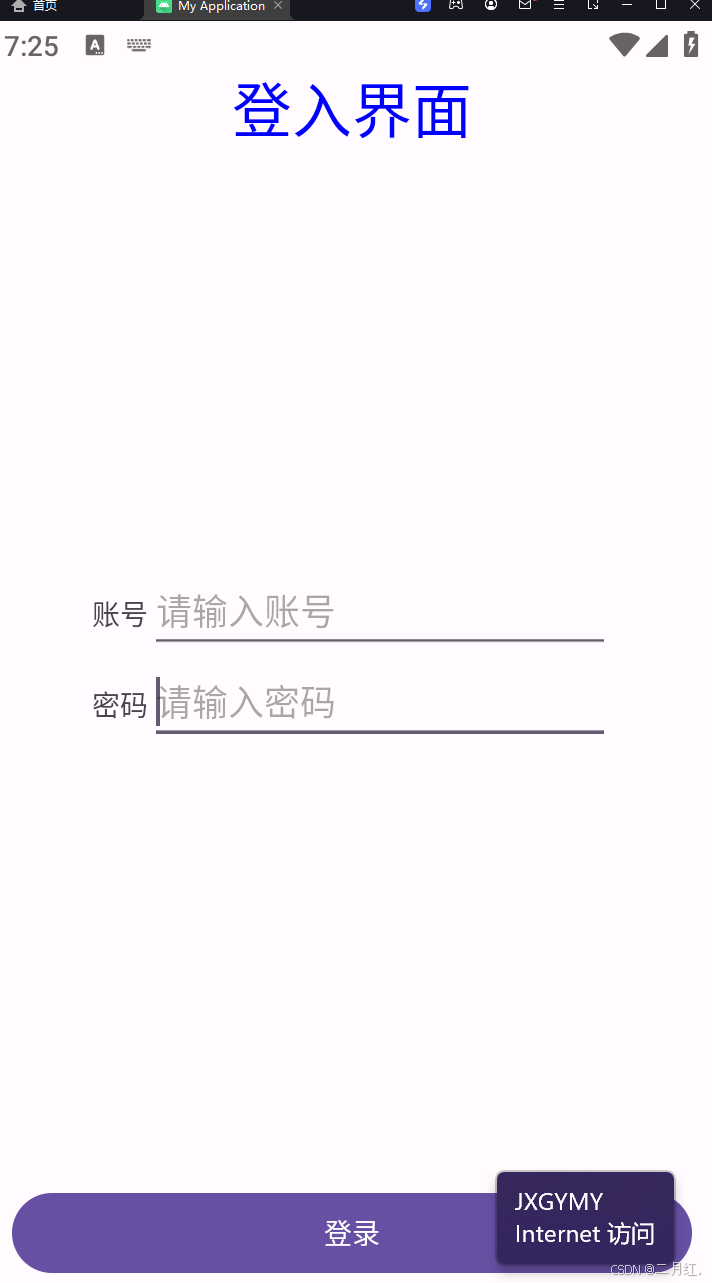
实现以上页面,需要掌握线性布局基本知识
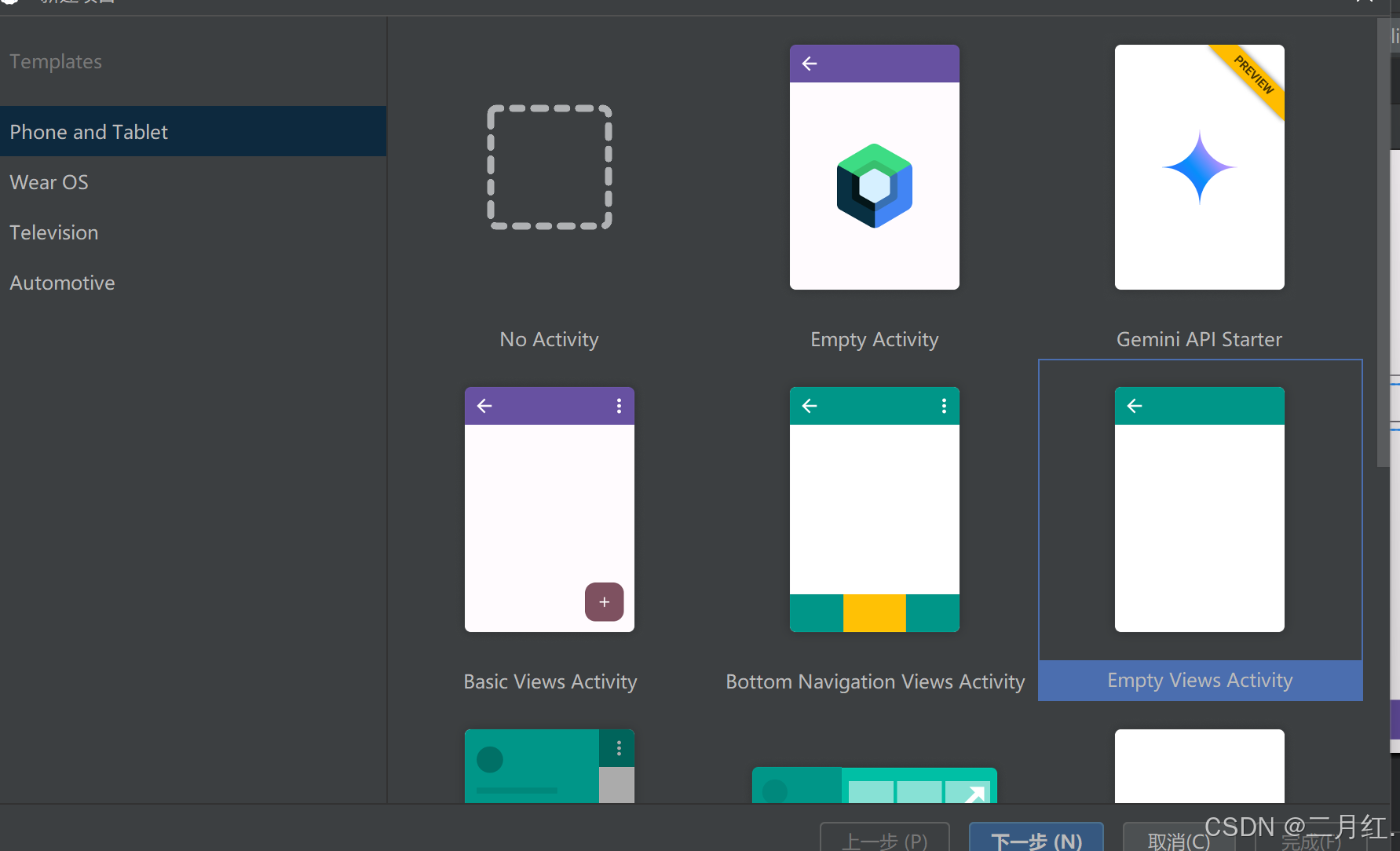
首先:新建页面有俩种方式(第一种),新建项目选择“Empty Views Activity”,另外一种在工程下新建页面(结尾展示)
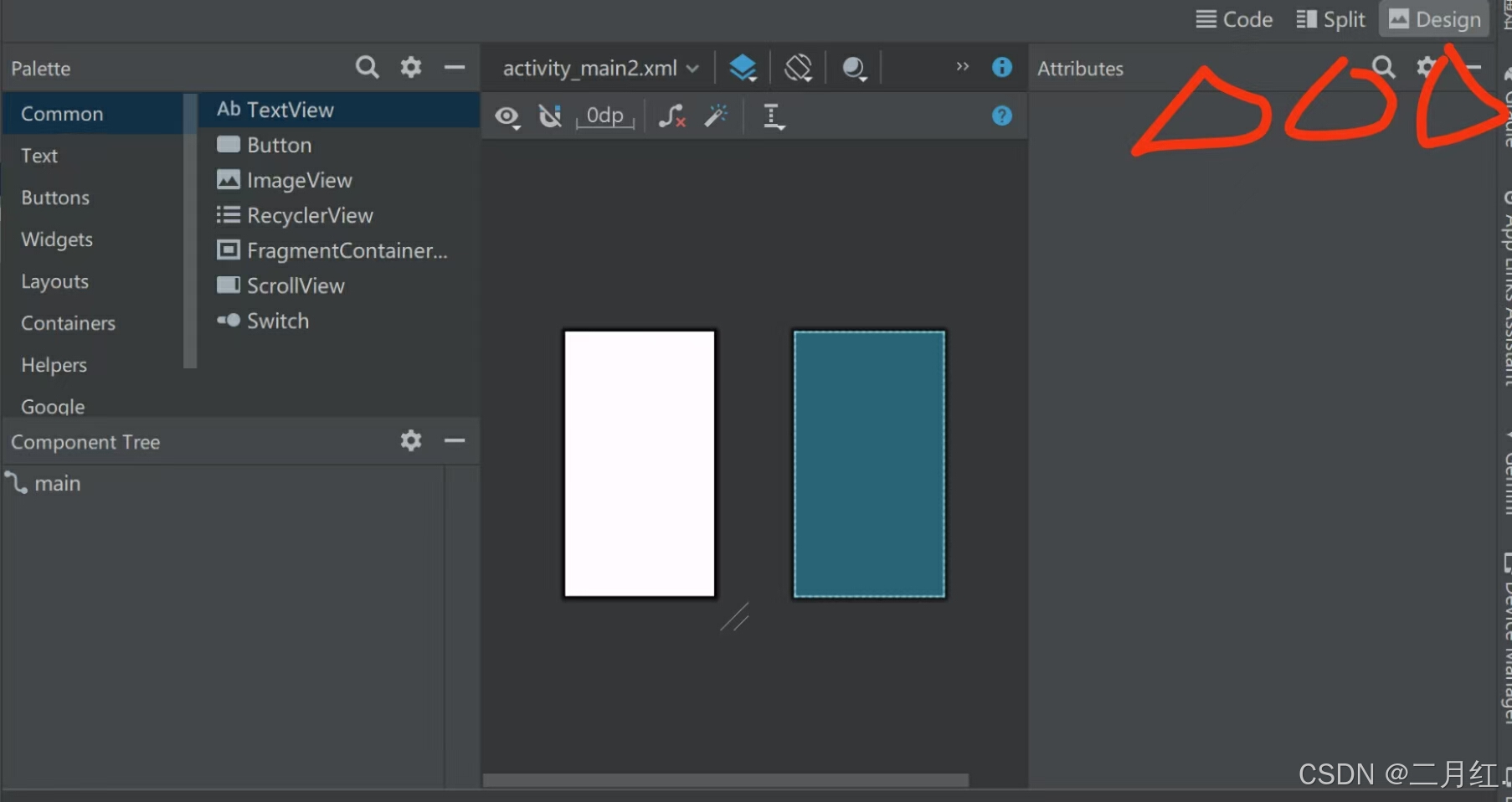
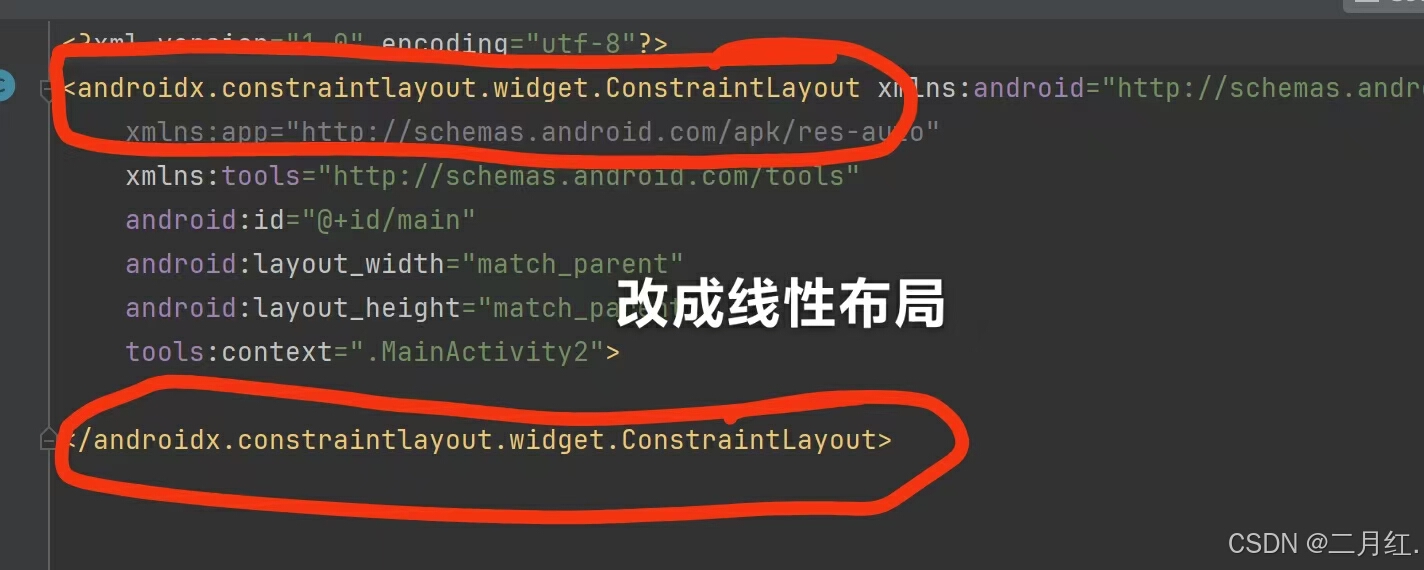
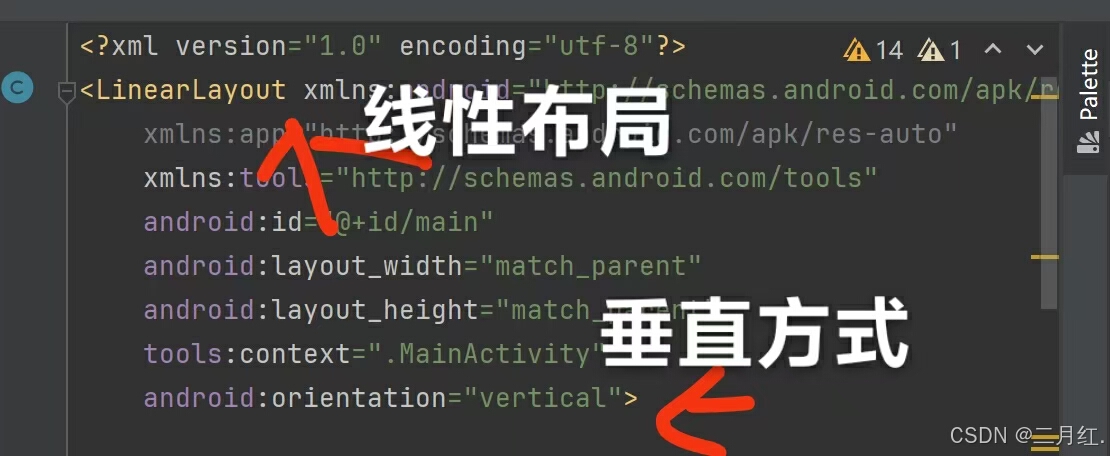
第二步:改成线性布局【LinearLayout】(:其内的控件按照线性进行排列),排列方式有两种:1.水平方式(horizontal) 2.垂直方式(vertical),登入页面总体布局方式为垂直方式
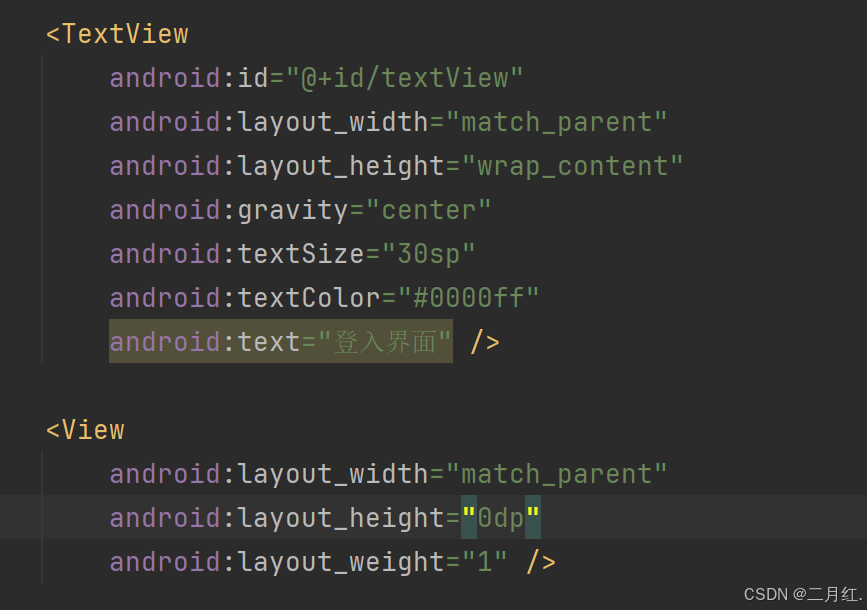
“登入页面”代码如下:添加一个TextView,(gravity)位置 (textSize)字体大小【单位是sp】 (textColor)字体颜色
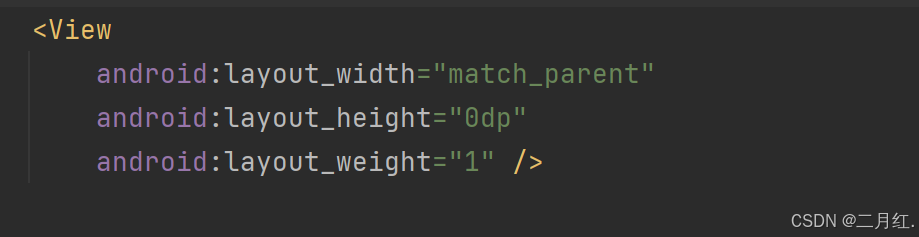
(text)文本输入。为了让‘密码和账号能在中间。需要在其上面和下面加入View控件,高度比重为1,用于占位’
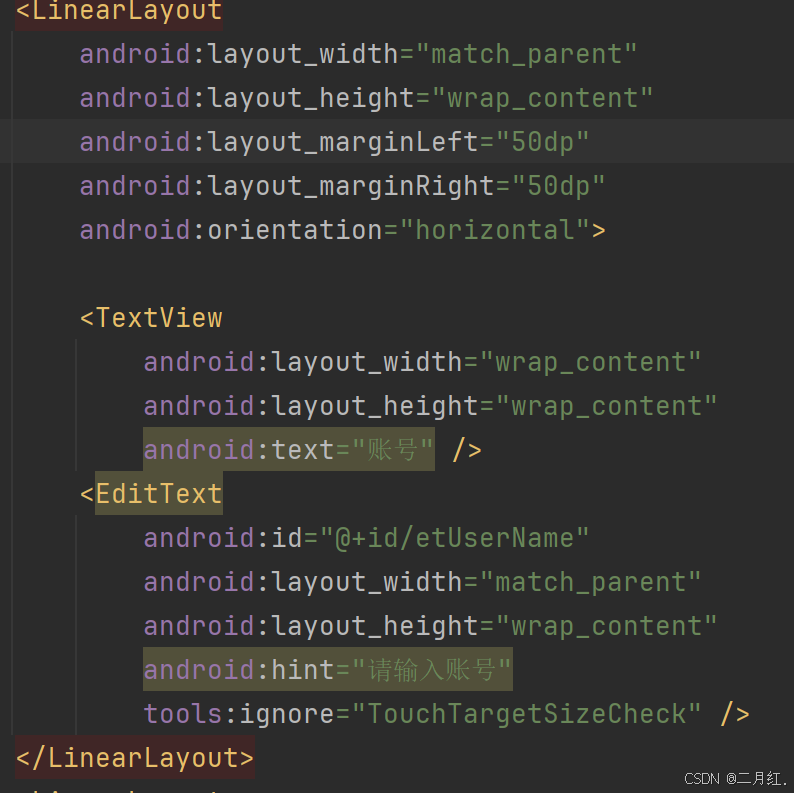
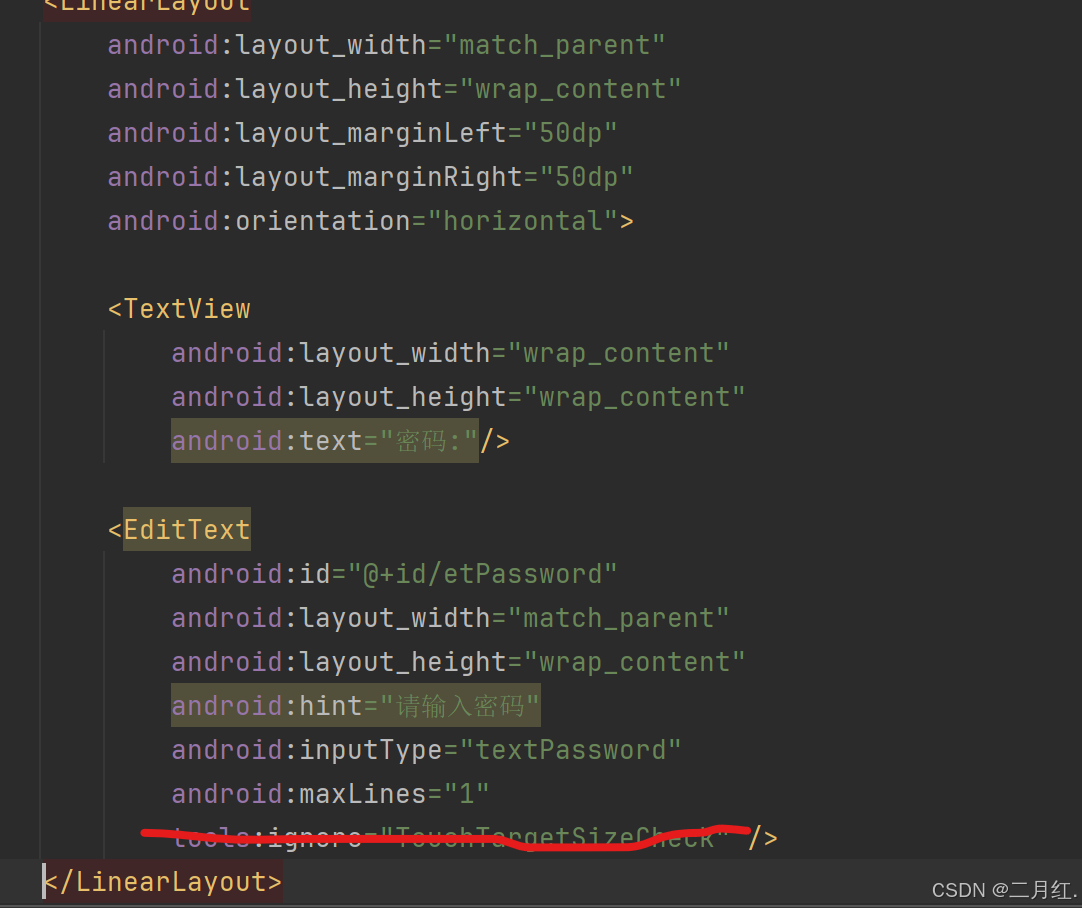
“账号、密码输入”:我们需要再添加一个线性布局,排列方向为水平。在子布局中添加一个TextView显示‘账号’;接着再添加一个EditText用于账号输入(同理添加显示密码和密码输入),使用android:hint设置文字提示。接着在线性布局上添加属性android:layout_marginLeft/Right 设置左右边距。别忘啦还有个占位View!
′登录页面′:和以上不同的是,登录,需要一个按钮【Button】因为我们后续需要这个按钮有相关 作用,不是文本输入TextView哦
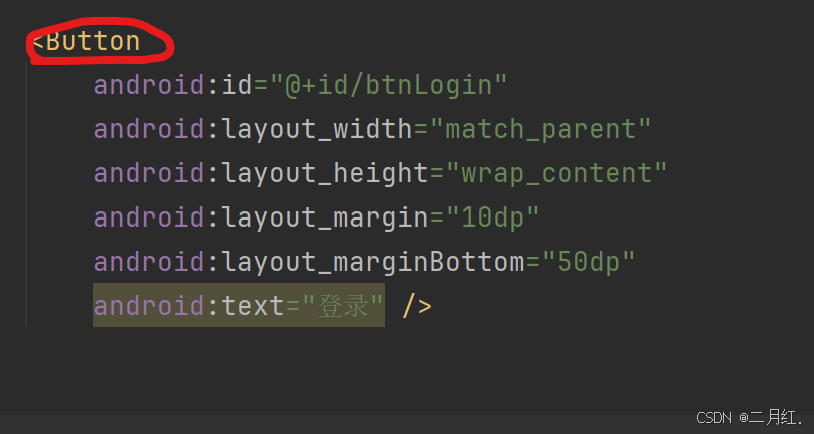
至此一个登入页面就完成啦!【以下是页面全部代码,欢迎大家提意见(╹ڡ╹ )】
<?xml version="1.0" encoding="utf-8"?>
<LinearLayout xmlns:android="http://schemas.android.com/apk/res/android"
    xmlns:app="http://schemas.android.com/apk/res-auto"
    xmlns:tools="http://schemas.android.com/tools"
    android:id="@+id/main"
    android:layout_width="match_parent"
    android:layout_height="match_parent"
    tools:context=".MainActivity"
    android:orientation="vertical">

    <TextView
        android:id="@+id/textView"
        android:layout_width="match_parent"
        android:layout_height="wrap_content"
        android:gravity="center"
        android:textSize="30sp"
        android:textColor="#0000ff"
        android:text="登入界面" />

    <View
        android:layout_width="match_parent"
        android:layout_height="0dp"
        android:layout_weight="1" />

    <LinearLayout
        android:layout_width="match_parent"
        android:layout_height="wrap_content"
        android:layout_marginLeft="50dp"
        android:layout_marginRight="50dp"
        android:orientation="horizontal">

        <TextView
            android:layout_width="wrap_content"
            android:layout_height="wrap_content"
            android:text="账号" />
        <EditText
            android:id="@+id/etUserName"
            android:layout_width="match_parent"
            android:layout_height="wrap_content"
            android:hint="请输入账号"
            tools:ignore="TouchTargetSizeCheck" />
    </LinearLayout>
    <LinearLayout
        android:layout_width="match_parent"
        android:layout_height="wrap_content"
        android:layout_marginLeft="50dp"
        android:layout_marginRight="50dp"
        android:orientation="horizontal">

        <TextView
            android:layout_width="wrap_content"
            android:layout_height="wrap_content"
            android:text="密码:"/>

        <EditText
            android:id="@+id/etPassword"
            android:layout_width="match_parent"
            android:layout_height="wrap_content"
            android:hint="请输入密码"
            android:inputType="textPassword"
            android:maxLines="1"
            tools:ignore="TouchTargetSizeCheck" />
    </LinearLayout>
 <View
        android:layout_width="match_parent"
        android:layout_height="0dp"
        android:layout_weight="1" />

    <Button
        android:id="@+id/btnLoagin"
        android:layout_width="match_parent"
        android:layout_height="wrap_content"
        android:layout_margin="10dp"
        android:layout_marginBottom="50dp"
        android:text="登录" />


</LinearLayout>
最后展示在已建项目下新建一个页面:
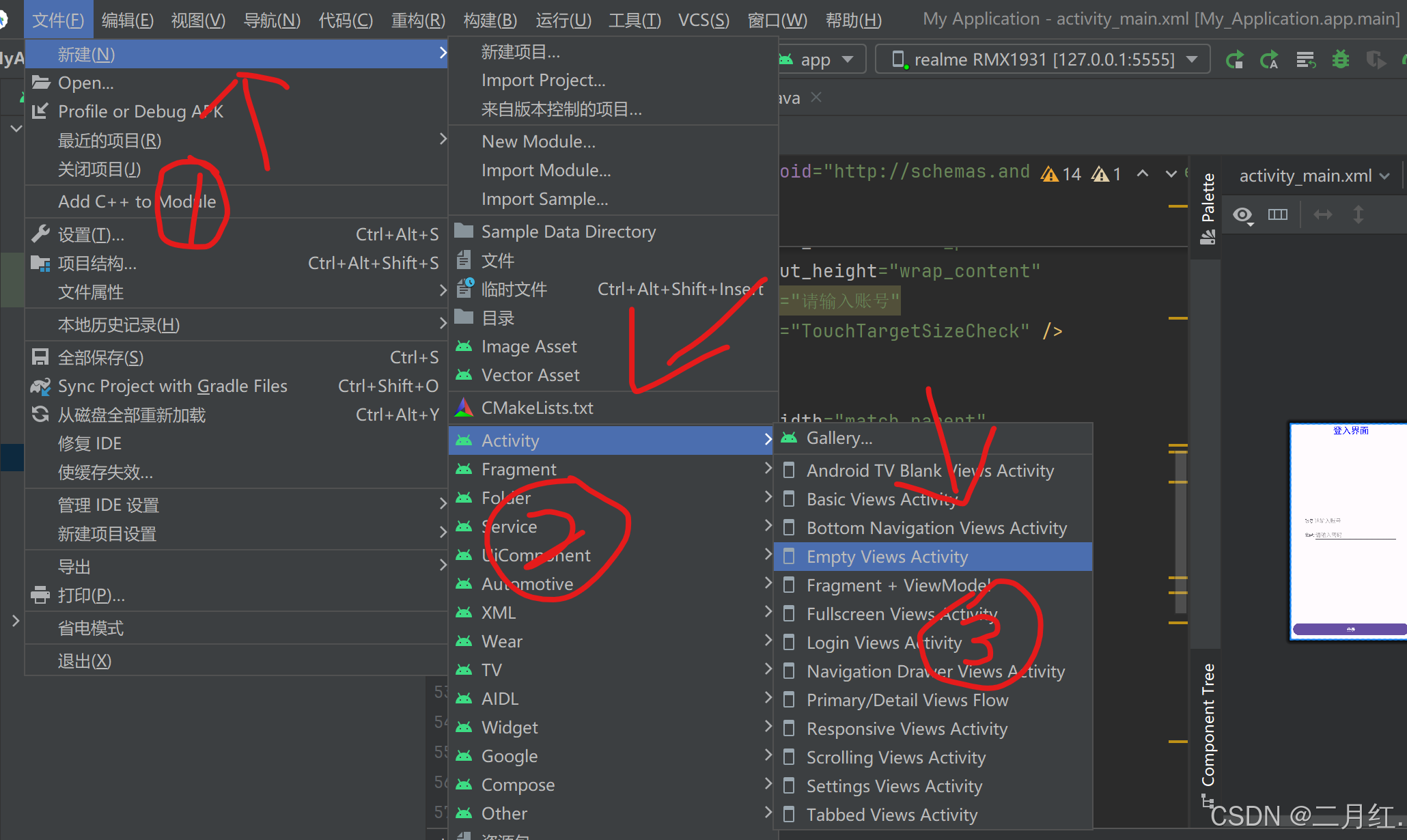
根据以上3个步骤,先点击【文件】(选中新建)-----【Activity】------【Empty Views Activity】(根据需要选择不同的Activity)
感谢大家的阅读!!!😁